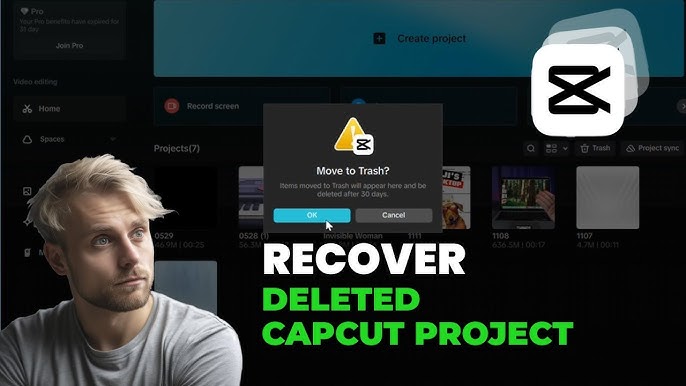
Yes. In many cases, deleted CapCut projects can be recovered if they were synced with your CapCut account, saved in local storage, backed up to cloud services, or still available in your device’s recycle bin. The recovery method depends on whether you use Android, iPhone, Windows, or Mac. CapCut Not Opening
Quick Recovery Summary
Situation
Recovery Chance
Best Solution
Deleted recently
High
Check Recycle Bin
Logged into CapCut account
High
Restore from Cloud
Windows PC
High
File History
Android Phone
Medium
Check File Manager
iPhone
Medium
iCloud Backup
Factory Reset
Low
Backup Recovery
Screenshot Suggestion 1
Losing a CapCut Project Can Be Frustrating
Imagine spending several hours editing a video, adding effects, transitions, captions, and music, only to discover that the project has suddenly disappeared. Whether you are creating content for YouTube, TikTok, Instagram, or your business, losing a project can feel like losing days of hard work.
The good news is that deleting a project does not always mean it is gone forever. Many users believe that once the Delete button is pressed, recovery becomes impossible. Fortunately, that is not always true.
Depending on how your device is configured, your project may still exist in another location. It could be stored in CapCut Cloud, saved inside your computer’s backup system, or sitting quietly inside your recycle bin waiting to be restored.
Before trying advanced recovery software, always begin with the easiest recovery methods. Many users recover their projects within a few minutes simply because the files were never permanently deleted.
Why Do CapCut Projects Get Deleted?
Understanding why projects disappear helps prevent the same problem in the future.
Here are the most common reasons.
Cause
Description
Accidental deletion
The project was deleted by mistake.
App reinstall
Reinstalling CapCut removed local data.
Phone reset
Factory reset erased storage.
Cache cleaning
Some cleaning apps delete project folders.
Storage failure
Corrupted storage damaged project files.
Software update
Rare update bugs may remove projects.
Account issue
Cloud sync failed after logout.
Many users accidentally remove projects while trying to free storage space. Others uninstall CapCut without realizing that locally stored projects are also removed.
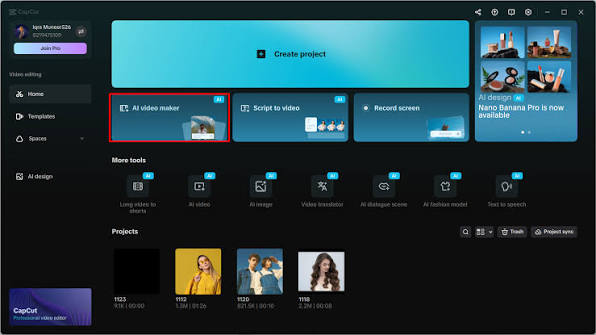
Method 1: Check the Projects List First
Before assuming your project has disappeared, open CapCut and carefully check the Projects section.
Sometimes projects appear farther down the list instead of disappearing completely.
Steps
Open CapCut.
Go to Projects.
Scroll through every available project.
Check Drafts.
Search by thumbnail.
You would be surprised how many people simply overlook an older draft because they have dozens of saved projects.
If the project appears, open it immediately and create a backup.
Screenshot Suggestion 2
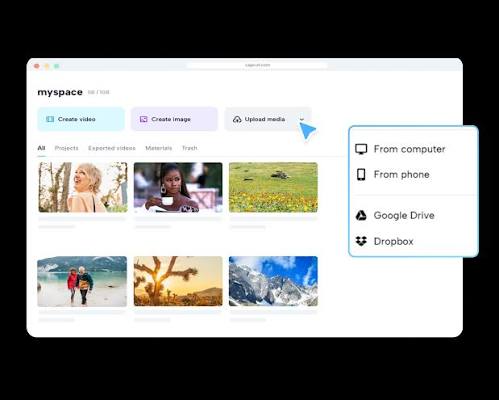
Method 2: Recover from CapCut Cloud
If Cloud Sync was enabled before the project disappeared, recovery becomes much easier.
CapCut Cloud automatically stores synchronized projects on your account.
How to restore
Open CapCut.
Log in using the same account.
Select Cloud Space.
Look for your missing project.
Download it again.
Cloud recovery works especially well when switching between devices because projects remain connected to your account instead of your phone.
Many creators never realize Cloud Backup was already protecting their projects.
Benefits of Cloud Backup
Feature
Advantage
Automatic Sync
Less chance of losing work
Multiple Devices
Access projects anywhere
Easy Recovery
Restore in minutes
Safe Storage
Protects against phone loss
Screenshot Suggestion 3
Method 3: Restore from the Windows Recycle Bin
If you edit videos on Windows, always check the Recycle Bin before trying complicated recovery software.
Deleted project folders often remain there until the bin is emptied.
Steps
Open the Recycle Bin.
Search for CapCut.
Look for project folders.
Right-click the folder.
Choose Restore.
Windows automatically returns the folder to its original location.
This simple method has one of the highest success rates because many deleted files remain in the recycle bin for weeks.
Screenshot Suggestion 4
Method 4: Check the Recently Deleted Folder on Mobile
Some Android phones include a Recently Deleted section inside the File Manager.
Open your File Manager and check folders like:
Recently Deleted
Trash
Recycle Bin
If your deleted project appears there, restore it immediately.
Not every Android device includes this feature, but Samsung, Xiaomi, Oppo, Vivo, and several other manufacturers do.
Method 5: Restore from Local Backup
Many creators copy important projects to another drive after finishing editing.
If you created a backup, recovery becomes simple.
Look inside:
Documents
Videos
Desktop
External Hard Drive
USB Drive
Search for folders containing the project name.
If found, simply copy them back into your CapCut Projects folder.
Method 6: Recover Using File History (Windows)
Windows includes a feature called File History, which automatically creates previous versions of folders.
If it was enabled before the deletion, restoring files only takes a few clicks.
Steps
Open the original CapCut Projects folder.
Right-click inside the folder.
Select Restore Previous Versions.
Choose an older version.
Click Restore.
Many users overlook this built-in Windows feature even though it often recovers deleted files without additional software.
Pro Tip
After recovering your project, immediately create multiple backups. Save one copy on your computer, another in cloud storage, and another on an external drive. Keeping several backups greatly reduces the risk of losing important editing work in the future.
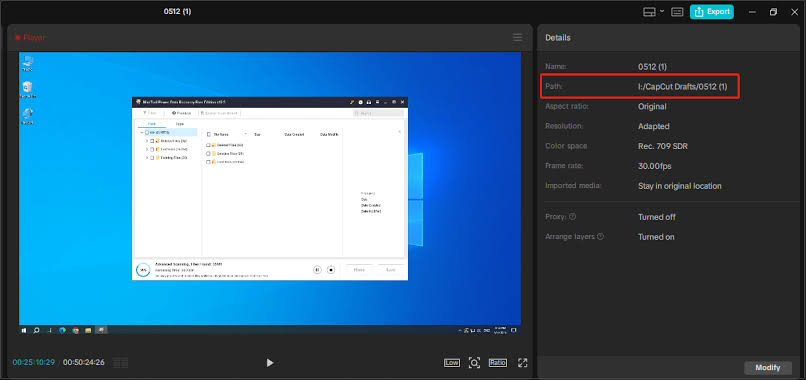
Method 7: Recover CapCut Projects Using Android File Manager
If you edit videos on an Android phone, your deleted project may still exist in the app’s local storage. While this method does not work in every situation, it is worth checking before trying recovery software.
Open your phone’s File Manager and enable the option to show hidden files if available. Then browse through your internal storage and look for folders related to CapCut.
Common locations include:
Internal Storage
└── Android
    └── data
        └── com.lemon.lvoverseas
or
Movies
CapCut
Projects
Some Android devices store project files in slightly different locations, so use the search feature inside your File Manager and search for CapCut.
If you find project folders, avoid editing or renaming them. Copy them to another folder first before attempting recovery.
Screenshot Suggestion 5
Method 8: Restore Deleted Projects on iPhone
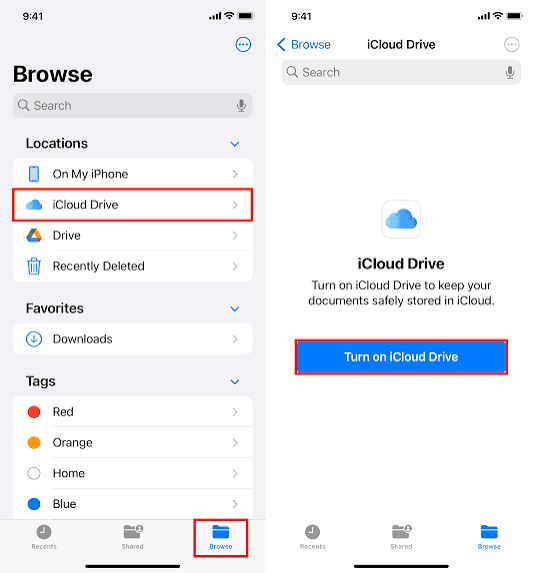
Recovering deleted CapCut projects on an iPhone depends on whether iCloud Backup or iCloud Drive was enabled before the project disappeared.
Start by opening the Files app and checking any folders where you normally save exported videos or project files. If nothing appears, review your iCloud storage to see whether CapCut data was included in a recent backup.
If you recently restored your device from an iCloud backup, some project data may also return automatically.
Keep in mind that restoring an old iPhone backup replaces your current data, so make sure you understand the consequences before proceeding.
Recovery Options for iPhone Users
Recovery Method
Difficulty
Success Rate
iCloud Backup
Medium
High
Files App
Easy
Medium
iTunes Backup
Medium
Medium
Recovery Software
Hard
Medium
Screenshot Suggestion 6
Method 9: Use Professional Data Recovery Software
If your project has been permanently deleted and no backup exists, data recovery software may help recover deleted files.
Recovery software scans your storage device for deleted files that have not yet been overwritten by new data. CapCut Templates Not Working
The sooner you start recovery, the better your chances.
Some well known recovery applications include:
Software
Windows
Mac
Free Version
Recuva
Yes
No
Yes
Disk Drill
Yes
Yes
Yes
EaseUS Data Recovery
Yes
Yes
Limited
Wondershare Recoverit
Yes
Yes
Limited
Do not install recovery software on the same drive where your deleted project was stored because new files can overwrite recoverable data.
Method 10: Restore From Google Drive or OneDrive
Many creators automatically back up important folders using cloud storage services like Google Drive, OneDrive, or Dropbox.
Open your cloud storage account and search for:
CapCut
Projects
Videos
If you previously synchronized these folders, simply download the missing project back to your computer.
Cloud storage is one of the safest ways to protect editing projects because it continues working even if your device becomes damaged or stolen.
Screenshot Suggestion 7
Method 11: Recover Exported Videos
Sometimes the original project cannot be recovered, but the exported video still exists.
Check folders such as:
Videos
Downloads
Movies
DCIM
Desktop
Although you cannot edit the project exactly as before, having the exported video is much better than losing everything.
If necessary, import the exported video into a new CapCut project and continue editing from there.
Method 12: Contact CapCut Support
If your project disappeared because of a software bug or account synchronization issue, contacting CapCut Support may help.
When submitting a request, include:
Your CapCut account email
Device model
Operating system version
CapCut version
Date the project disappeared
Screenshots if available
Providing complete information makes it easier for the support team to investigate the issue.
Common Mistakes That Reduce Recovery Chances
Many users accidentally make recovery impossible by taking the wrong steps immediately after deleting a project.
Avoid these mistakes.
Mistake
Why It Is Bad
Recording new videos
Overwrites deleted files
Installing apps
Uses storage space
Factory resetting immediately
Permanently removes data
Clearing storage
Deletes remaining files
Ignoring backups
Makes recovery harder
If your project is important, stop using the device until you finish recovery.
How to Prevent Losing CapCut Projects Again
Recovering deleted projects can be stressful, but preventing data loss is much easier.
Follow these simple habits.
Enable Cloud Sync
Sign in to your CapCut account and enable Cloud Space whenever possible.
Create Weekly Backups
Copy your project folder to an external drive every week.
Export Important Videos
Always export completed projects before deleting drafts.
Keep Enough Storage
Running out of storage can sometimes corrupt project files.
Update CapCut Carefully
Read update notes before installing major updates.
Avoid Unknown Cleaning Apps
Some cleaning applications mistakenly remove important project folders.
Best Backup Strategy
Backup Type
Recommended
CapCut Cloud
✅ Yes
External SSD
✅ Yes
USB Drive
✅ Yes
Google Drive
✅ Yes
OneDrive
✅ Yes
No Backup
❌ Never
Frequently Asked Questions
Can I recover a permanently deleted CapCut project?
Yes, but only if a backup, cloud sync, recycle bin, or recovery software can locate the deleted files before they are overwritten.
Does uninstalling CapCut delete projects?
Yes. Projects stored only on your device may be removed when the app is uninstalled.
Where are CapCut projects stored?
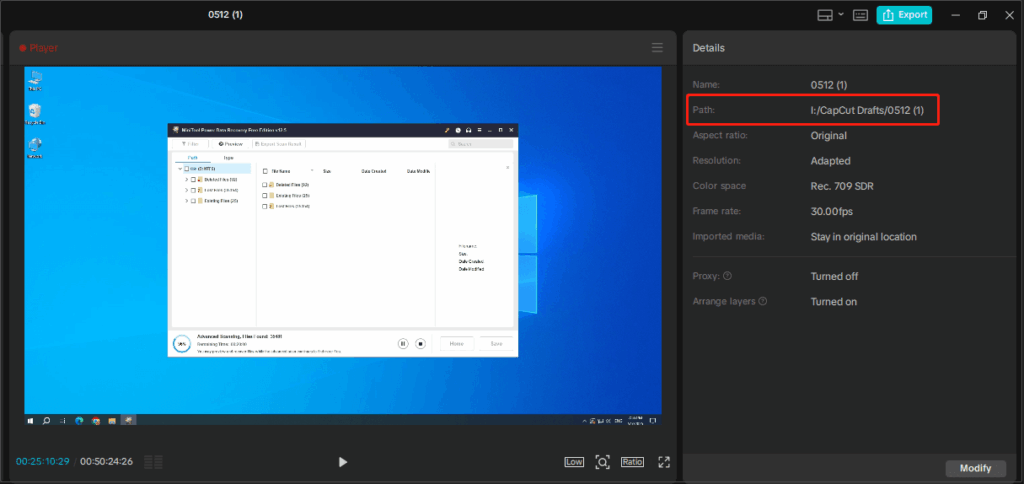
The storage location depends on your device. Windows, Android, iPhone, and Mac all use different folders.
Can I recover projects after a factory reset?
Only if you created a backup before resetting the device.
Does CapCut automatically back up projects?
Only if Cloud Sync is enabled.
Is recovery software safe?
Well known recovery tools are generally safe when downloaded from their official websites.
Why did my project disappear after updating CapCut?
Software updates can sometimes affect local files or cloud synchronization, although this is uncommon.
Can I recover deleted videos without the original project?
Yes. If the exported video still exists, you can create a new project and continue editing.
Should I keep projects in cloud storage?
Yes. Cloud storage greatly reduces the risk of permanent data loss.
What is the easiest recovery method?
Checking CapCut Cloud, the Recycle Bin, and local backups usually provides the highest success rate.
Final Thoughts
Losing a CapCut project can be frustrating, especially after spending hours creating and editing videos. Fortunately, many deleted projects can still be recovered using the right method. Whether your project is stored in CapCut Cloud, your computer’s Recycle Bin, Android File Manager, iCloud, or a backup service, acting quickly gives you the best chance of success.
The safest approach is to prevent future data loss by enabling cloud synchronization, creating regular backups, and exporting important projects before making major changes. These simple habits can save you hours of work and protect your creative projects from accidental deletion.
Conclusion
If your CapCut project has disappeared, don’t panic. Start with the simplest recovery methods, such as checking your project list, cloud storage, or recycle bin. If those options don’t work, move on to backup recovery or trusted recovery software. With patience and the right approach, many users successfully restore their lost projects.
Do you experience CapCut Error Code 10007? You are definitely not alone. This error, according to many users of the CapCut application, manifests itself when they want to export video, save draft, upload clips, or load templates in the application. This mistake seems to be severe and annoying, but, in reality, a cause of this…
Reverse Video Effect in CapCut Pro is an entertaining and imaginative video editing program. It reverses your clip and it makes something shocking. It is utilized by many creators to introduce style, drama or humor to short videos. To be frank, it seems to be complicated but it becomes easy with the help of CapCut….
Best VPN for CapCut PC is becoming an important topic because many users face region issues, slow access, or blocked features when trying to use CapCut on desktop. People want smooth editing, secure connection, and full access without stress. So, It helps users enjoy safe editing while protecting privacy and improving stability during their creative…
Among the quickest methods of expanding social media in 2026, Instagram Reels has been mentioned. Short videos get more reach than normal posts. Instagram promotes your content to new users in case it is interesting. That implies increased views, increased following, and higher growth. Instagram Reels have been the daily tool of many creators to…
Video content is everywhere now. Each day, people create reels, shorts, vlogs, and ads. CapCut gained notoriety due to being simple and rapid. Still, many users now search for Editors Similar to CapCut that offer new tools, better control, or smoother performance on their devices. Some users have storage limits. Others want more advanced editing….
CapCut to Gaming Montages is quickly gaining popularity among gamers who prefer to make clean, easy and quick edits without having to master a complicated program. In 2026, gaming content will be ubiquitous and creators will desire tools that will save time and energy. CapCut gives that simple feeling while still offering strong editing features….