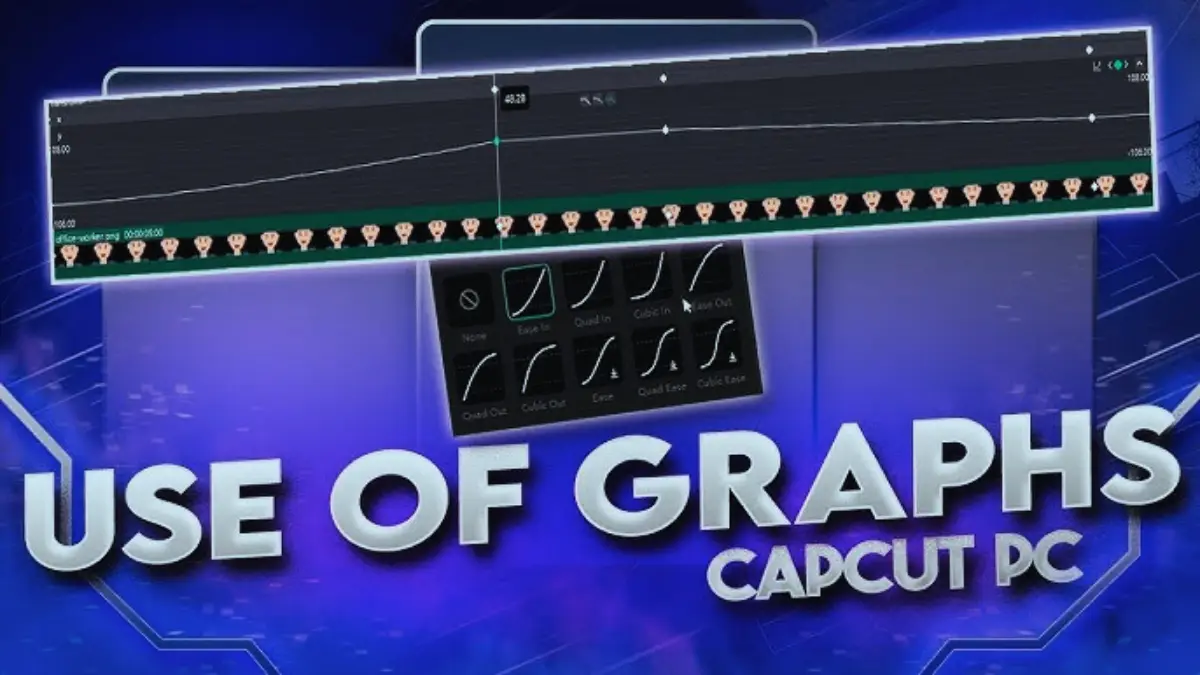
How To Edit Graphs on CapCut PC Easily
The question How To Edit Graphs on CapCut PC is also a frequent inquiry of a lot of video editors when they first use the desktop version of CapCut. The graph editor helps control animation speed and movement between keyframes. Well, to be honest, after learning the workings of graph curves, your video animation will be able to appear much smoother and more professional.
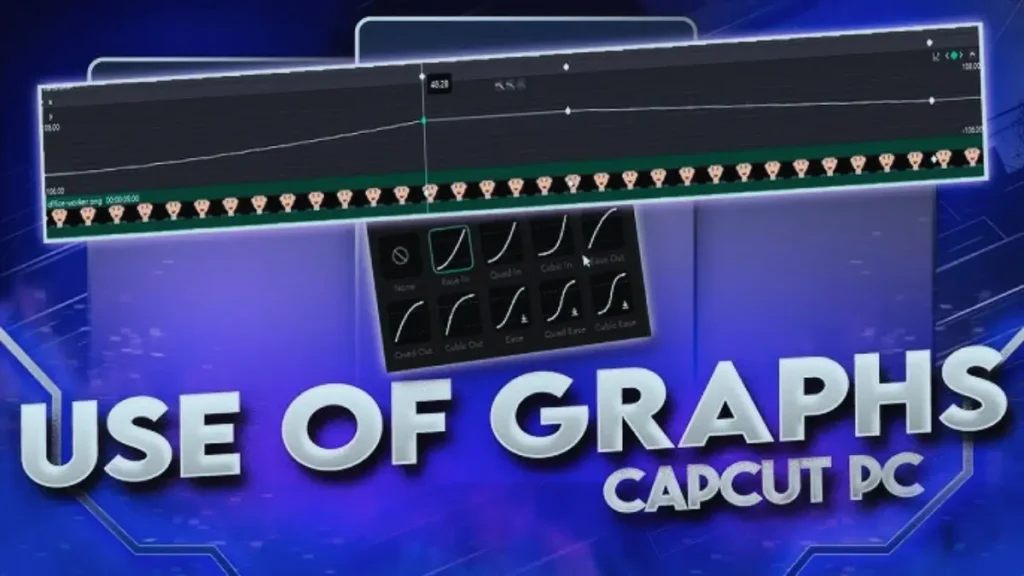
Graph editing is the next level of motion control after learning the basics of trimming and transitions. By adjusting graph curves, editors can create smooth zoom effects, slide animations, and cinematic movements in their videos. This is why learning How To Edit Graphs on CapCut PC can greatly improve your editing skills.
Modern versions like CapCut 2026 also include improved animation tools and easier graph controls. Some creators even explore advanced editing options through CapCut Pro Download. Nevertheless, reducing the risk and using official alternatives instead of unofficial ones such as CapCut Mod APK is always safer and more advantageous to use official editing software.
How To Edit Graphs on CapCut PC for Smooth Animations
Learning How To Edit Graphs on CapCut PC helps editors control how an animation moves between two points. The graph editor changes the speed of motion, which means animations can start slowly and finish smoothly instead of moving at a constant speed.
When beginners use normal keyframes, the movement sometimes looks stiff. Graph editing solves this problem. The movement of the animation curve makes the movement more realistic and sensitive to the eyes.
Understanding the CapCut Graph Editor
The CapCut graph editor shows a visual curve that represents motion speed. Time is indicated by the horizontal line whereas the intensity or speed of movement is indicated by the vertical direction.
The editors modify this curve to alter the way the animation acts. As an example, a curved line has the ability to make the movement smooth whereas a straight line is constant speed.
Types of Graph Curves in CapCut PC
CapCut provides different types of animation curves. The most utilized are ease in and ease out curves.
Ease refers to the fact that the animation begins slowly and accelerates. Ease out refers to the fact that the animation begins quickly and ends slowly. These curves make video movements look more natural.
Step by Step Guide on How To Edit Graphs on CapCut PC
To begin the editing in the graph, log into CapCut PC and upload your video clip. Find the place in the timeline where you want to add animation.
Then choose the clip and insert keyframes of position, scale or rotation. After adding the keyframes, the graph editor option comes in where one can modify the motion.
Adding Keyframes Before Editing Graphs
Animation relies on keyframes. They indicate the beginning and the terminus of a motion effect.
This is the case in point with a zoom-in/out animation where you put a key-frame at one end, and the other at the other end. Then you can use the graph editor to manipulate the zoom that goes between those points.
Adjusting Graph Curves for Better Motion
After adding keyframes, open the graph editor panel. The motion curve between the keyframes will be displayed.
The curve handles can be clicked and dragged to alter the shape of the animation. As an illustration, cinematic movement is generated by a smooth curve, whereas steeper movement is generated by a steep curve.
Tips for Better Graph Editing in CapCut PC
An example of such tips is to maintain the curves of animations smooth. Acute angles tend to result in unnatural motions that are robotic.
Simple animations are another practice that will help. Try small zoom or slide effects before experimenting with complex motion designs.
Modern updates such as CapCut 2026 provide improved graph controls. These edits simplify the process of animation editing among the beginners.
Common Mistakes While Editing Graphs
Most beginners use unnecessary keyframes when editing animations. This can make the motion complicated and difficult to control.
Another common mistake is creating extreme curves. Once the curve is too sharp, then the animation can either be too fast or appear unnatural.
Unofficial versions of software like CapCut Mod APK must not be used either, as they can be causing problems with performance or security.
Extra Editing Tools That Improve Graph Animations
Graph editing is most suitable when used together with other editing tools. The overall quality of the video can be enhanced with transitions, effects and color adjustments.
A lot of creators take CapCut Pro Download and add more editing features to their works to make further improvements to animations. These features help create more dynamic and professional videos.
Conclusion
Learning How To Edit Graphs on CapCut PC is an important skill for anyone who wants to create smooth video animations. The graph editor gives editors control over motion speed and timing.
Graph curves give natural and cinematic effects to movements instead of simple linear animations. Minor changes can bring significant change to the final video.
Simple animations can be considered the best place to start with beginners until they are familiar with the more complex graph editing methods.
If you want your videos to look more professional, start experimenting with graph curves today. With practice, How To Edit Graphs on CapCut PC will become one of your most useful editing skills.
FAQs
1 What does graph editing do in CapCut PC
Graph editing controls the speed and motion of animations between keyframes. It helps create smoother and more natural movements in videos.
2 Why should I learn How To Edit Graphs on CapCut PC
Learning graph editing allows editors to create professional looking animations such as smooth zooms, slides, and motion effects.
3 What are keyframes in CapCut PC
Keyframes are important points of a timeline that animation switches take place. They define the start and end of motion effects.
4 What is ease in and ease out animation
Ease The animation begins slowly and accelerates. Ease out refers to the process of slowing down before completion.
5 Can beginners use the CapCut graph editor
Yes, the graph editor can be used by simple beginners but one has to start with simple animations and learn how curves influence motion.
6 Why do my animations look unnatural
In case the graph curve is too sharp, or too many keyframes are provided, animations can look unnatural.
7 Does CapCut PC support advanced animations
Yes, CapCut PC supports advanced animation editing through graph curves, keyframes, and motion effects.
8 Is CapCut PC free to use
CapCut has numerous free editing options, and some more advanced features might be available as a premium.
9 Can graph editing improve video quality
Yes, the smoother motion generated through the use of graph editing makes videos more professional and appealing to the eye.
10 How can I practice graph editing in CapCut PC
Start with simple zoom or slide animations and experiment with different curve shapes to understand how motion changes.