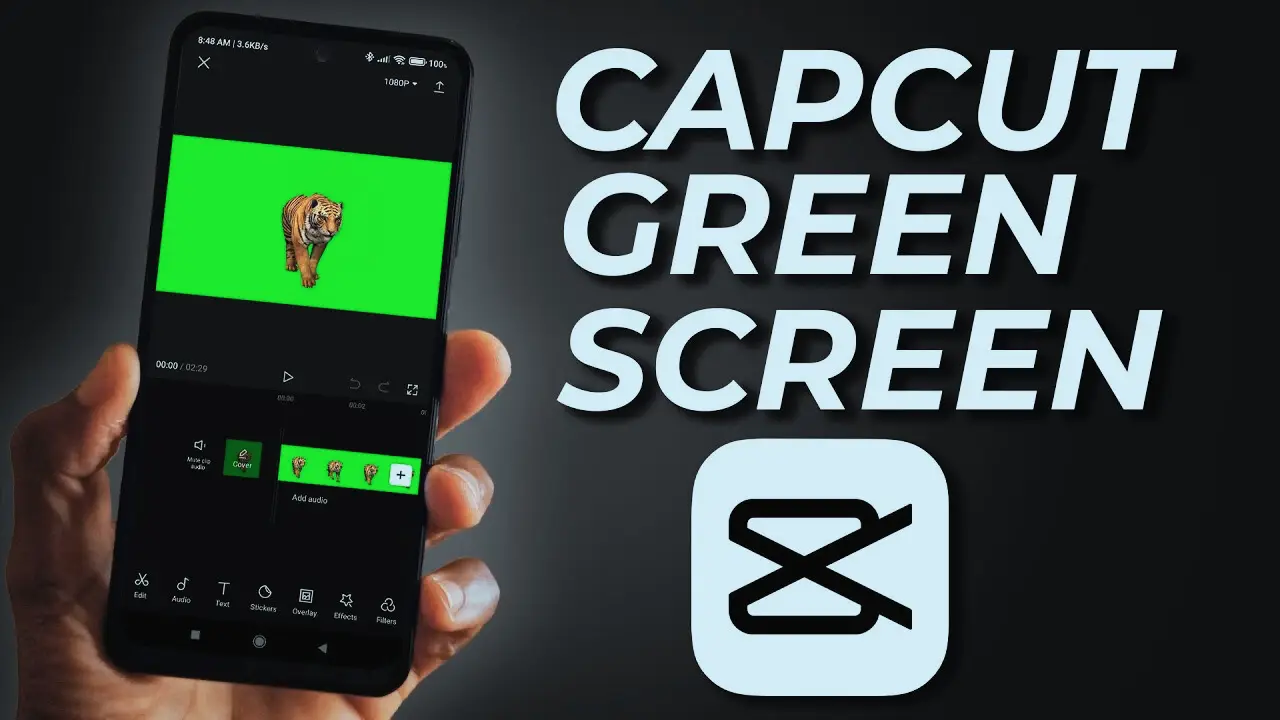
How to Use Green Screen in CapCut for Beginners
Use Green Screen in CapCut is one of the easiest ways to create professional videos on mobile. Many beginners think green screen editing is hard. However, in the real world, CapCut makes it easy through its chroma key option.
By using the Green Screen in Capcut, you can delete the green background and use any other picture or video. You can be on a beach, in space or in a gaming room. It looks creative and fun.
I will discuss all that one by one in this guide. No complicated words. Just clear actions. Even if you are new to editing, you can follow easily and create amazing content.
Why You Should Use Green Screen in CapCut for Better Videos
Green screen helps you change background without expensive studio. You just record in front of green cloth or wall. Then remove it using chroma key tool. It saves time and money.
Many content creators use this feature for YouTube, reels, and tutorials. For example, you can add news studio background for presentation video. It makes your video look professional.
More recent software versions such as the CapCut 2026 are smoother and more reactive in editing tools. I also find it easy to manipulate intensity and shadow convertible to myself. The results are quite clean if lighting is good.
Instead of simple background blur, green screen gives full control. You can choose any creative background. That is why beginners should learn this feature early.
How to Use Green Screen in CapCut Step by Step
Now let us start the real process.
Import Clips to Use Green Screen in CapCut Properly
First, record your video in front of green background. Make sure light is even. No dark spots.
Open CapCut and create new project. Add your main background video first. After that, tap on overlay and add your green screen clip.
Select the overlay clip. Scroll tools and tap on Chroma Key. Choose green color using color picker tool. Now green background will start disappearing.
Adjust Settings to Use Green Screen in CapCut Smoothly
After selecting green color, adjust intensity slider slowly. Increase it until green is fully removed. Do not push too high. Otherwise edges may break.
Use shadow option to smooth edges. Play preview and check carefully. If you see green lines, adjust again gently.
Honestly, lighting plays big role. If light is uneven, even best settings cannot fix it fully. So always focus on clean recording first.
Common Mistakes While Using Green Screen in CapCut
Many beginners use wrinkled green cloth. This creates shadows and uneven color. Try to keep background flat and tight.
Do not wear green clothes. If you wear green shirt, that part will disappear too. It looks funny, but not useful.
Poor lighting is another problem. Dark room creates noise and green patches. Also avoid low resolution recording. HD video gives better result.
Some users over adjust intensity. This removes fine details like hair edges. So balance is important.
Tips to Improve Green Screen Quality
Use bright and soft lighting. Place light from front, not from side. Keep little distance between you and green background. This reduces shadow.
Use good camera if possible. Even smartphone works fine if lighting is proper. Before editing, clear cache if app feels slow.
If you use CapCut Pro Download from official store, you may get smoother performance and extra features. Avoid using CapCut Mod APK because unofficial versions can create bugs in chroma key tool.
Practice with small clips first. Try different backgrounds and test what looks natural.
Conclusion
Green screen editing is not difficult. You just need good lighting, clean background, and correct settings. Start by adding background, then overlay your green clip. Use chroma key and adjust intensity carefully.
There are common errors to be avoided such as putting on a green colour or wrinkled cloth. Keep everything simple. Practice again and again.
Well, it is true because after studying how to Use Green Screen in CapCut, you will see how your video looks more creative and more professional. Test it on a daily basis and test with fun backgrounds.
Get used to it and work on your editing.
FAQs
- How to Use Green Screen in CapCut?
Add background clip first, then overlay your green video. Select overlay, tap on chroma key, choose green color, and adjust intensity to remove background. - Where is chroma key option in CapCut?
Chroma key option is available inside editing tools when you select the overlay clip in timeline. - Does CapCut 2026 improve green screen feature?
Yes, the CapCut 2026 has a more refined performance and controls to better the chroma key editing. - Can CapCut Mod APK affect green screen editing?
Yes, unofficial versions may have bugs that disturb chroma key function and cause errors. - Is CapCut Pro Download better for green screen?
Official CapCut Pro Download may offer better performance and extra tools, but green screen works in free version too. - Why is my green background not removing?
It could occur as a result of inadequate illumination, improper color choice or low-intensity change. - How to avoid green edges in CapCut?
Adjust shadow and intensity slowly. Keep proper lighting and avoid wrinkles on background cloth. - Can I use blue screen instead of green?
Yes, you can use blue screen. Just select blue color in chroma key option. - What lighting is best for green screen?
Soft and even front lighting works best. Avoid strong side light that creates shadow. - Is green screen available in free version of CapCut?
Yes, chroma key feature is available in free version of CapCut for all users.