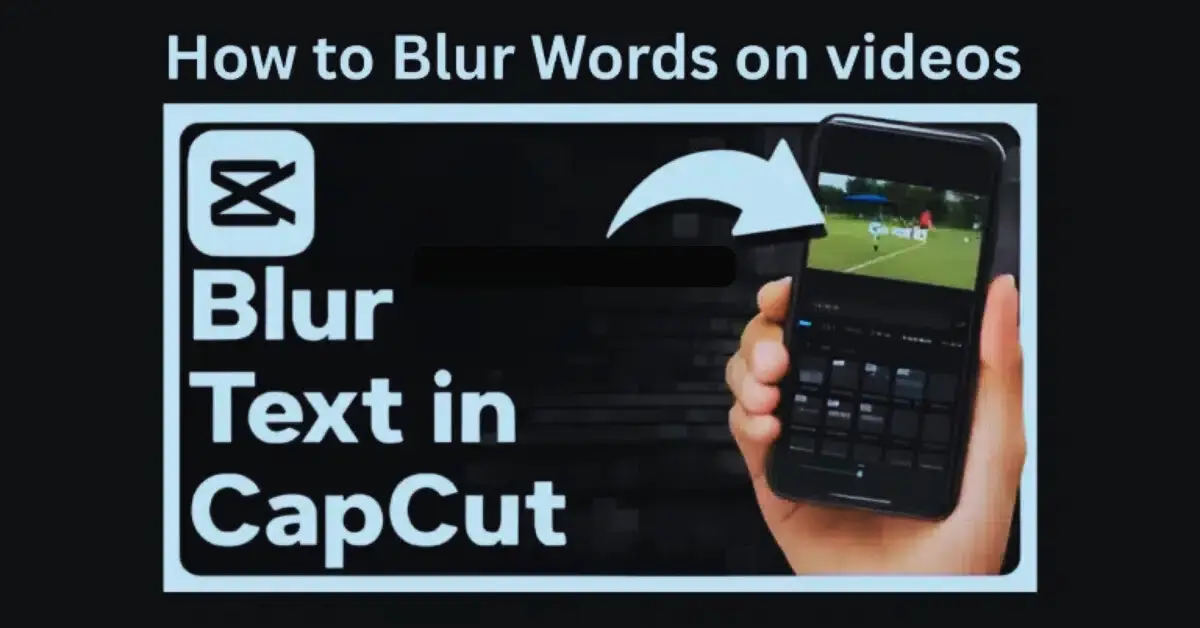
How to Blur Words in CapCut PC – Complete Video Editing Guide 2026
Some times you are done with editing a video and find that an unwanted text appears on the screen. It may consist of a username, phone number, email address, location tag or any other text that is not supposed to be shown. Frankly speaking, it occurs quite frequently when dealing with screen recording or re-using a clip. The good news is that CapCut on PC enables one to blur words with so much ease after getting acquainted with the tools location.
Numerous novices are lost as the blur option is not found on the timeline. But there is no need to panic. CapCut PC has potent blur and mask effects that are seamlessly functioning even during the free edition. You do not need CapCut Pro APK or any mod files for this task.
In this guide, everything is explained step by step in a simple way so you can blur words cleanly and professionally.
Why Blur Words in CapCut PC?
Creators blur words for many reasons. The most widespread of them is privacy. There are individuals who prefer concealing such personal details as phone number or usernames. Others blur text to remove mistakes or distractions from the video.
Blurring is also used for design purposes. Sometimes soft blur helps keep the viewer’s focus on the main subject. The best part is that CapCut for PC offers flexible blur options that look clean after export. Even if you are using a CapCut Old Version, the basic blur tools still work well, though newer versions offer smoother control.
Step 1: Import Your Video into CapCut PC
The initial step is to download CapCut in your computer and load in your video into the editor.
Follow these simple steps:
- Open CapCut for PC
- Click Import or drag and drop your video
- Move the video to the timeline
- Make sure that the clip is chosen by clicking on it.
At this point, when you lay the video on the timeline you can add effects to it. One must take precautions and make sure that the clip is in position and then it is blurred.
Step 2: Open the Effects Panel
All blur tools in CapCut PC are located inside the Effects section.
Here is how to find them:
- Look at the left-side menu
- Click on Effects
- Open Video Effects
- Scroll down until you see the Blur category
There are various forms of blur, namely, basic blur, Gaussian blur, motion blur and pixel blur. Simple blur or pixel blur would do the best in hiding words.
Step 3: Add the Blur Effect to the Timeline
After selecting the blur effect of your choice it is high time to apply there.
- Drag the blur effect
- Drop it above your video clip on the timeline
At this stage, the whole video will be blurred. Do not worry. This is normal. The second step is to mask out the text only areas with masks.
Step 4: Mask the Blur to Cover Only the Words
This is the step that matters the most. Masks will enable you to obscure a certain part of the video rather than the entire one.
- Click on the blur effect in the timeline
- Look at the right-side settings panel
- Find the Mask option
- Choose Rectangle or Circle
- Place the mask over the text you want to blur
You are able to adjust the mask in its size and position. Change the feathering to make the edges of the blur soft or sharp. High feather is a softer blend, which is sharper with low feather.
Step 5: Track the Blur If the Text Moves
If the text moves or the camera changes position, the blur must follow it. CapCut PC has a built-in tracking feature for this.
- Select the blur effect
- Enable Mask Tracking
- Click Start Tracking
CapCut will automatically follow the movement of the text. In the event that tracking is inaccurate, the tracking can be corrected manually by keyframe adjustment of the mask.
Step 6: Adjust Blur Strength for Better Results
Not all text needs the same blur strength. CapCut PC lets you fine-tune the effect.
You can adjust:
- Blur strength
- Opacity
- Feather
- Mask softness
For sensitive information like ID numbers or phone numbers, use strong blur or pixel blur. For design or background text, lighter blur looks more natural.
Step 7: Export the Video with Blur Applied
When everything is okay then time to export.
Recommended export settings:
- Resolution: 1080p or 4K
- Frame rate: 30fps or 60fps
- High quality enabled
CapCut for Mod keeps blur effects clean during export. You do not need any external software to maintain quality.
Extra Tips for Clean and Professional Blur
Here are some practical tips to improve results:
- Make the mask slightly larger than the text
- Avoid extreme feathering
- Use pixel blur for usernames and private details
- Review preview prior to exportation.
In case you are also an editor at CapCut on Android or CapCut on iOS, it should be pointed out that the blur tracking is not as difficult and precise on PC.
Conclusion
It is easy to blur words in CapCut PC as soon as one learns to use effects, masks, and tracking together. All this is arranged within the Video Effects panel and one does not blur the whole clip but only the part required. CapCut PC has easy time whether its protection of privacy, correction of errors or enhancement of visual attention.
Simply add the blur, hide the text, follow it when necessary and save your video. That’s it.
FAQs
Where is the blur tool in CapCut PC?
The blur tool may be found in the Effects section of Video effects. Select Scroll down to Blur category.
Can I blur moving text in CapCut PC?
Yes, CapCut PC includes a mask tracking feature that automatically follows moving text.
Does pixel blur work better for sensitive information?
Yes, pixel blur hides text more effectively than soft blur, especially for private details.
Can I blur text using CapCut Pro APK or mobile apps?
Yes, however, CapCut on PC is more controllable and has higher tracking compared to mobile versions.
Why is my blur mask not following the text?
If tracking fails, use keyframes to manually adjust the mask position frame by frame.
Does exporting reduce blur quality?
Low-resolution export has the capability of softening blur. It is better to always export in 1080p or 4K.